
Duration
15 min
Clock out for your shifts (IL)
Medtec uses the AlayaCare app for scheduling and timekeeping. Medicaid requires all Medtec caregivers to accurately record their clock-in and clock-out times, along with their location, using the app. This is a mandatory requirement for all homemakers.
Please follow the steps below to clock in and out at the end of your shifts.
If you have any questions, contact the Medtec office at 847-470-4701.
Step 1: Log in to the Alayacare app by entering your email address and password.
Password: Medtec123? (M is a capital letter)

Step 2: Check the date and click the schedule block.
Please clock out on time. You will see a pop-up window if you don't clock out on time.
(Notice that the schedule block turns green after it has been clocked in.)

Step 3: Click "Care" Button.

Step 4: Click "Service Task" button.

Step 5: Click the "Check" button if the task has been completed.

Step 6: Click the "X" buttons the tasks you have not completed.

Step 7: Enter the reason why you didn’t do this task. Click “Done” button.
You can say something like, "N/A (not applicable)" or Client doesn't need it"

Step 8: The “X” button will be changed to the “X Not Done” button.
Do the next task.

Step 9: Compete the "Client Signature"
click the box next to "Client Signature"

Step 10: Click "Is the Client able to sign?"

Step 11: Select the answer to the question
Click Yes (if the client can sign)
Click No (If the client cannot sign) --> please see Step15 for the instructions.
Step 12: If the answer is Yes, click the Pen button.

Step 13: Ask the client to sign on the screen.
After the client signs, click Done or check mark button

Step 14: Click Submit button

Step 15: If the client cannot sign, then click "No".

Step 16: Click the "Reason Code" button.

Step 17: Select the reason why the client is not able to sign.

Step 18: Click the Submit button

Step 19: Now the service task is completed. Click the Clock Out button

Step 20: Eneter the appropriate reason and click the "Confirm & Clock out" button.
This message will pop up if you don't clock out at your client's place.
Please clock in at your client's place.
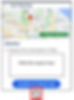
Step 21: Now it is clocked out.

Clock out Confirmation
Step 22: To check if the session was completed for a certain date, select the date you want to view and click the 0/1 Done button.

_________________________________________________________________________________________________________
Step 23: The most recent completed visit will appear on the screen. Click the three dots to see the time you clocked in and out, then click the Sessions button.

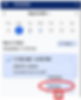
Step 24: All of the completed visits and the clock in and clock out time will appear on the screen. Find the visit that you want by the date.

Helpful Links